
Supply/Demand
Zones.
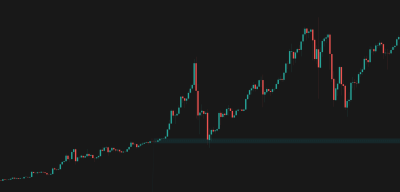
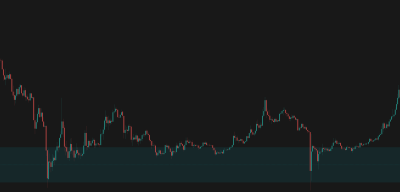
Automatically identifies high-probability Supply and Demand zones using advanced volume calculations and price action pattern recognition.

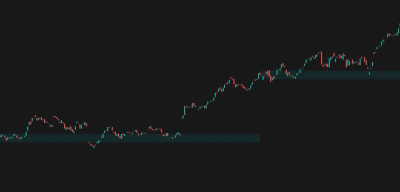
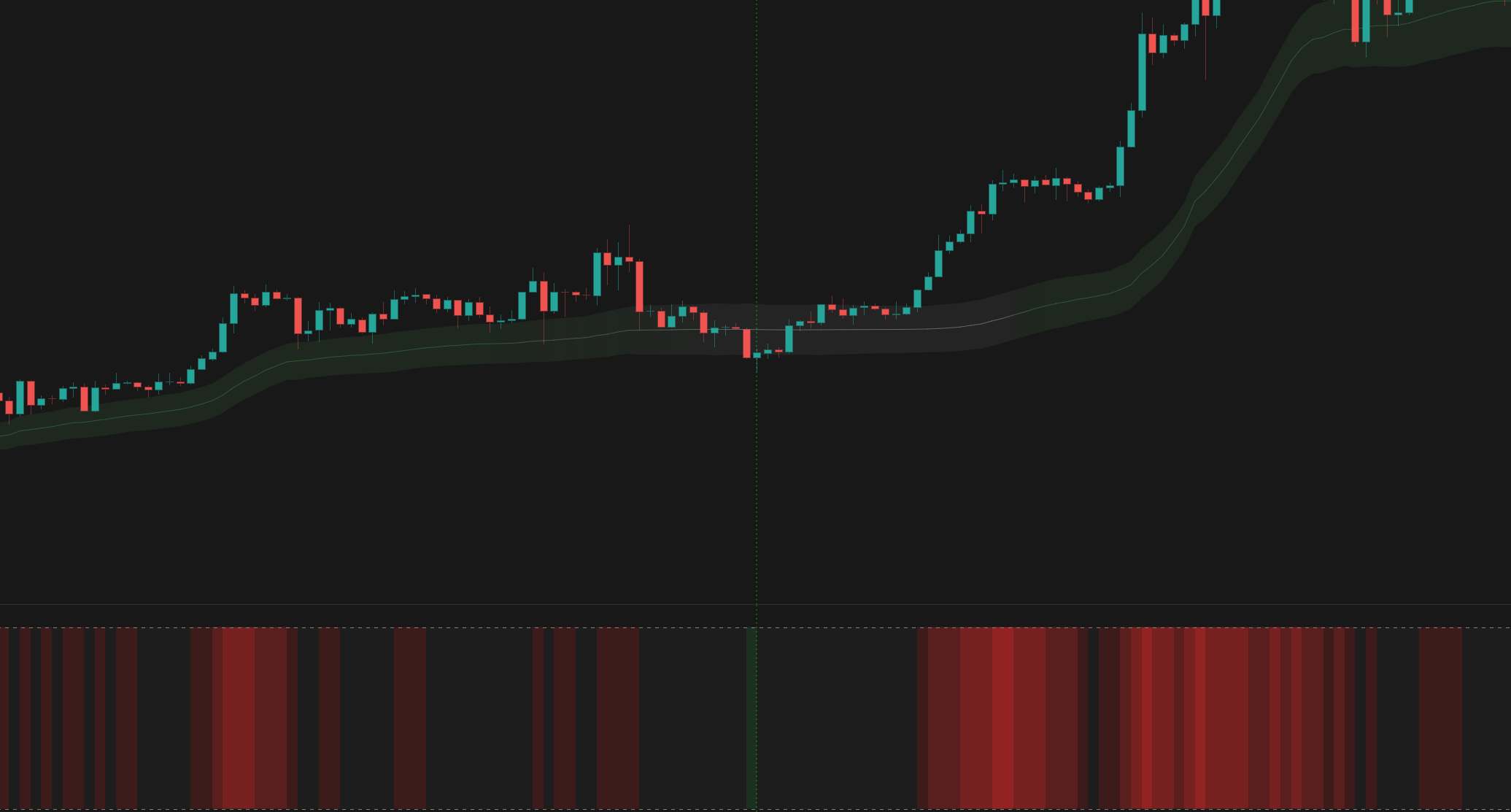
Support zone for trend continuation - AAPL, 1D
Overview
The Problem
Drawing support and resistance lines manually is subjective and often ignores where the actual trading volume occurred. Traditional pivot points don't account for market structure or volume confirmation, leading to false breakouts.
The Solution
Supply/Demand Zones automates the discovery of key institutional levels using advanced multi-factor analysis. It dynamically anchors to relevant timeframes and projects historical zones that are still relevant.
Who It's For
Price action traders, and anyone looking for objective, data-driven support and resistance zones.
Key Features
Dynamic Volume Calculation: Uses volume data to determine where the most meaningful trading activity occurred.
Pattern Recognition: Detects specific price action setups to validate zone creation.
Volume Filtering: Ensures that identified zones are backed by significant volume, filtering out weak levels.
Historical Zone Extension: Optionally extend up to 9 previous supply/demand levels to see how historical zones interact with current price.
Auto-Anchoring: Automatically adjusts the calculation period based on your current chart timeframe.
How It Works
Volume Analysis
The indicator uses volume data to identify where the most significant trading activity took place.
Pattern Detection
It identifies key turning points in price and validates them using advanced price action criteria to confirm potential reversal zones.
Zone Validation
A zone is only confirmed if it meets internal quality checks and, optionally, the Volume Filter threshold.
How To Use
Quickstart
- Add Supply/Demand Zones to your chart.
- Select your preferred Theme (Dark/Light) to match your chart background.
- Adjust the 'Filtering' strength to control how many zones are displayed (Aggressive = fewer, higher quality zones).
- Enable 'Extend Previous Levels' if you want to see historical zones that price might react to.
Interpretation
- Treat the zones as areas of interest, not exact price points. Look for price action confirmation (like a pin bar or engulfing candle) when price enters a zone.
- The Midline represents the center of gravity of that zone—a highly magnetic level.
- A break and close beyond a zone often signals a continuation in that direction, turning previous supply into demand (or vice versa).
Visual Legend
| Element | Meaning | Interpretation | Common Mistake |
|---|---|---|---|
| Channel Fill | The Supply or Demand zone. | Expect price reactions or consolidation within this area. | Placing stop losses tightly inside the zone; place them outside the zone boundaries. |
| Midline | The center of gravity for the zone. | Price often gravitates towards and reacts strongly to this exact level. | Assuming it's an unbreakable wall. |
| Extended Dashed Lines | Historical Supply/Demand zones. | Watch for reactions at these levels even if they were formed in the past. | Ignoring current market context when trading off old levels. |
Settings Reference
Main
Volume
Style
Alert Types
Channel Changed
Triggered when a new Supply/Demand zone is formed.
Price Entered Channel
Triggered when price enters an active Supply/Demand zone.
Price Broke Above Channel
Triggered when price breaks and closes above the upper boundary of a zone.
Price Broke Below Channel
Triggered when price breaks and closes below the lower boundary of a zone.
Price Crossed Midline Up
Triggered when price crosses above the center line of a zone.
Price Crossed Midline Down
Triggered when price crosses below the center line of a zone.
Frequently Asked Questions
No. However, the current active zone may adjust as new price and volume data comes in during the present candle.
It works on all timeframes. The indicator automatically adjusts based on your chart's timeframe to ensure relevant zones are calculated.
Try lowering the 'Filtering' strength to 'Permissive' or 'Very Permissive', or disable the 'Use Volume Filter' option. In low volatility or low volume environments, strict settings may filter out all potential zones.
Choose Your Plan
Get access to Supply/Demand Zones with the subscriptions below
Basic
- Adaptive MA Bands
- Price Rejection Oscillator
- Supply/Demand Zones
- Value Area Heatmap
- Support: Email (3-5 business days)
Basic
- Adaptive MA Bands
- Price Rejection Oscillator
- Supply/Demand Zones
- Value Area Heatmap
- Support: Email (3-5 business days)
Pro
- Adaptive MA Bands
- Price Rejection Oscillator
- Supply/Demand Zones
- Value Area Heatmap
- Anchored VWAP Channels
- Anchored VWAP Heatmap
- Support: Email (1-2 business days)
- 30-day money-back guarantee
Pro
- Adaptive MA Bands
- Price Rejection Oscillator
- Supply/Demand Zones
- Value Area Heatmap
- Anchored VWAP Channels
- Anchored VWAP Heatmap
- Support: Email (1-2 business days)
- 30-day money-back guarantee
Elite
- Adaptive MA Bands
- Price Rejection Oscillator
- Supply/Demand Zones
- Value Area Heatmap
- Anchored VWAP Channels
- Anchored VWAP Heatmap
- Market Structure Levels
- Premium ideas: Full Access to our Premium Ideas
- Support: Email (1-2 business days) + Discord Live Support
- 30-day money-back guarantee
Elite
- Adaptive MA Bands
- Price Rejection Oscillator
- Supply/Demand Zones
- Value Area Heatmap
- Anchored VWAP Channels
- Anchored VWAP Heatmap
- Market Structure Levels
- Premium ideas: Full Access to our Premium Ideas
- Support: Email (1-2 business days) + Discord Live Support
- 30-day money-back guarantee
Related Indicators
Other indicators that complement Supply/Demand Zones.
Anchored VWAP Channels
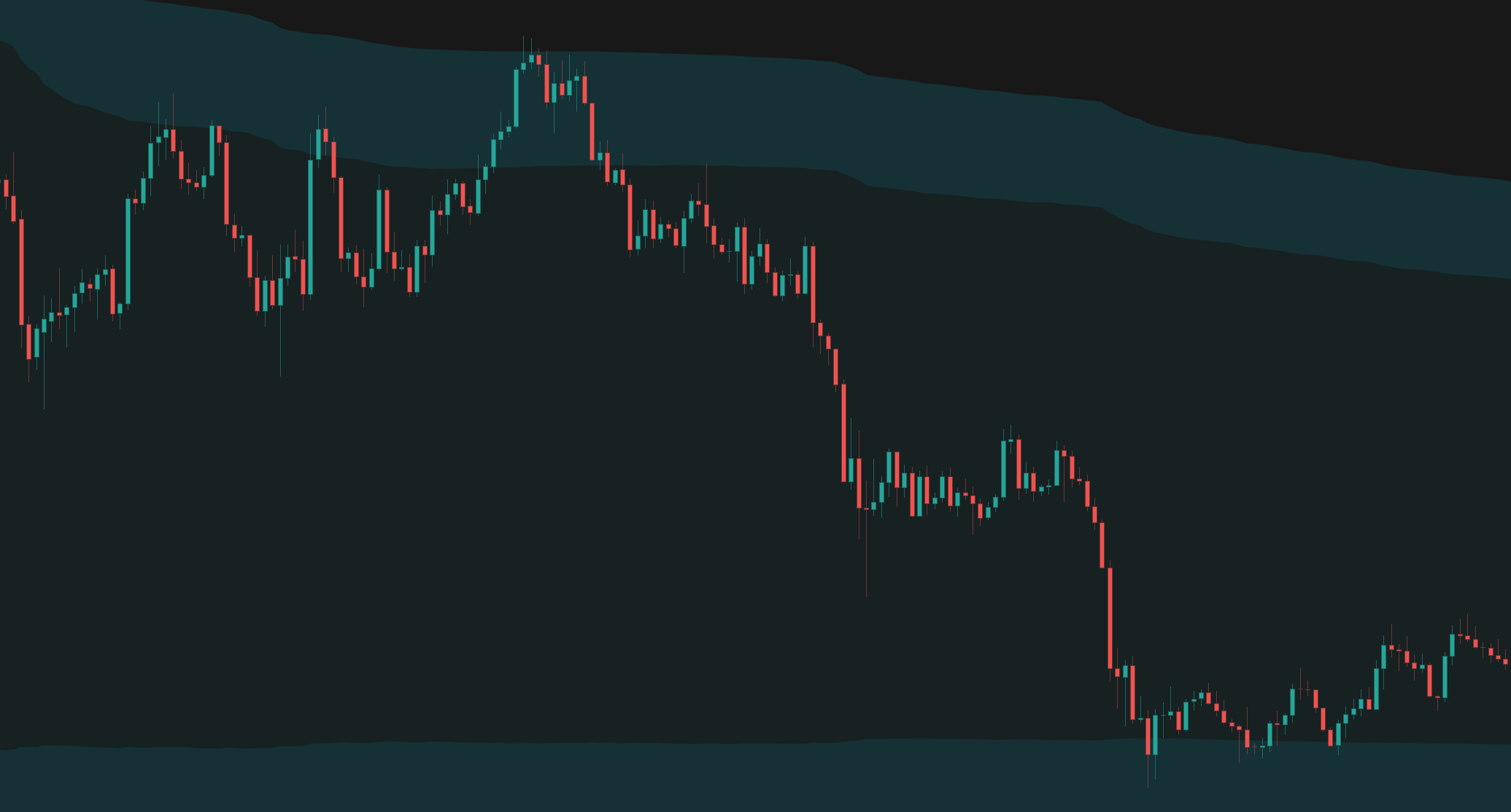
Anchored VWAP Channels that dynamically track volume-weighted average price from significant pivots or time periods, complete with volatility bands and historical levels.
Market Structure Levels
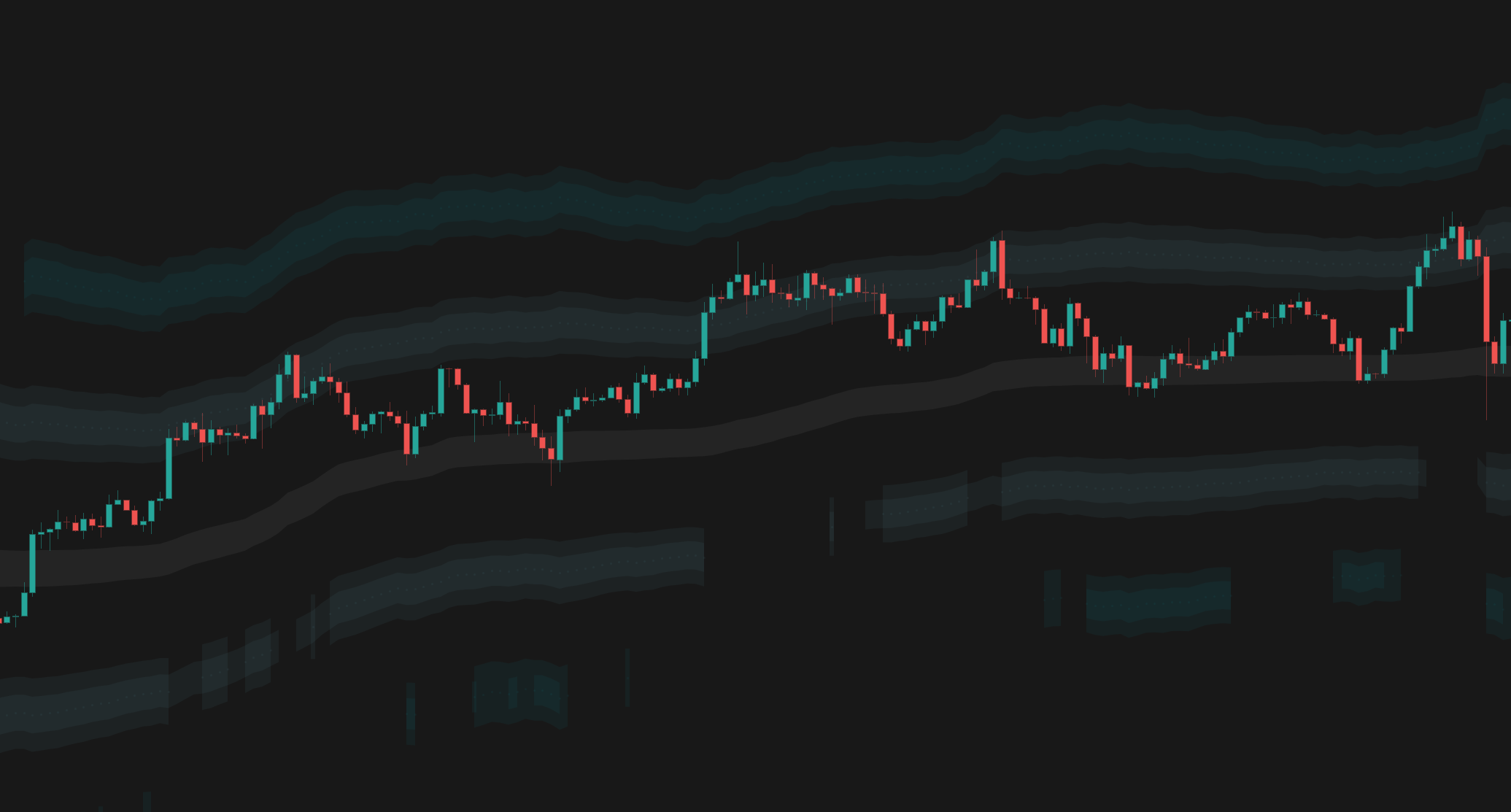
Dynamic support and resistance levels that automatically adapt to market volatility and price action, providing a structured grid for trading.
Price Rejection Oscillator
An oscillator that measures price conviction and volume to identify strong price rejections and potential reversals.
Connect With Us
Join our community of traders and stay updated with our latest tools and market insights.